YANTRA Task management for Quote Assist

Designing how Sales and Contracting work together on a travel quote.
A proposed feature for a later phase. It has not been built yet, so this case study shows design reasoning, not measured results.
Overview
YANTRA is Thomas Cook India’s internal platform for building travel proposals. Sales, Contracting Air, Contracting Land, Visa and Operations all work in it. I was the only UI/UX designer on the product, and I designed its Task Management feature, called Quote Assist, on my own.
The context
To put together a proposal, Sales needs information from the contracting teams. Contracting Air checks airline availability and fares. Contracting Land covers hotels, transport, sightseeing and ground services. A single trip often needs both.
This was a new workflow, not a redesign. There was no task feature in YANTRA to improve, so I started from the process itself: who asks whom for what, and what happens next. The requirements came from my manager, from stakeholders and from my own analysis of the workflow.
The design challenge
How might we give Sales one place to request airline and land information, track each request, and keep the conversation and documents for it together?
Three things made this harder than a simple to-do list:
- One request can go to two teams, and each team needs different details.
- Each team sees the same request from a different side. Sales is waiting for answers. Contracting is working through requests.
- The answer is not a yes or no. It is flight options, hotel worksheets and costing, often revised several times.
Mapping the workflow
In my design, a request moves between the three teams like this.
- 1 · SalesOpens a lead and presses Quote Assist
- 2 · SalesPicks Air, Land or both
- 3 · SalesFills one form per team
- 4 · AirTask appears in New Requests
- 4 · LandTask appears in New Requests
- 5 · AirWorks on it, replies in Updates, shares files
- 5 · LandWorks on it, replies in Updates, shares files
- 6 · SalesSees Response Received, reviews, asks follow-ups
- 7 · SalesTask completed
One request, one or two teams
Sales starts from the lead they are already working on. A Quote Assist button on the Update Lead screen opens a small window that asks one question: which contracting team should handle this request?
- Both teams are checkboxes, not a single choice, because one trip often needs both flights and hotels.
- Each option has a one-line description, so a new Sales user can pick the right team without knowing internal team names.
- With both picked, Create Task becomes a two-step form, one step per team. The button names the next step, so Sales always knows where they are.
- A confirmation closes the flow, so Sales knows the request has gone out.
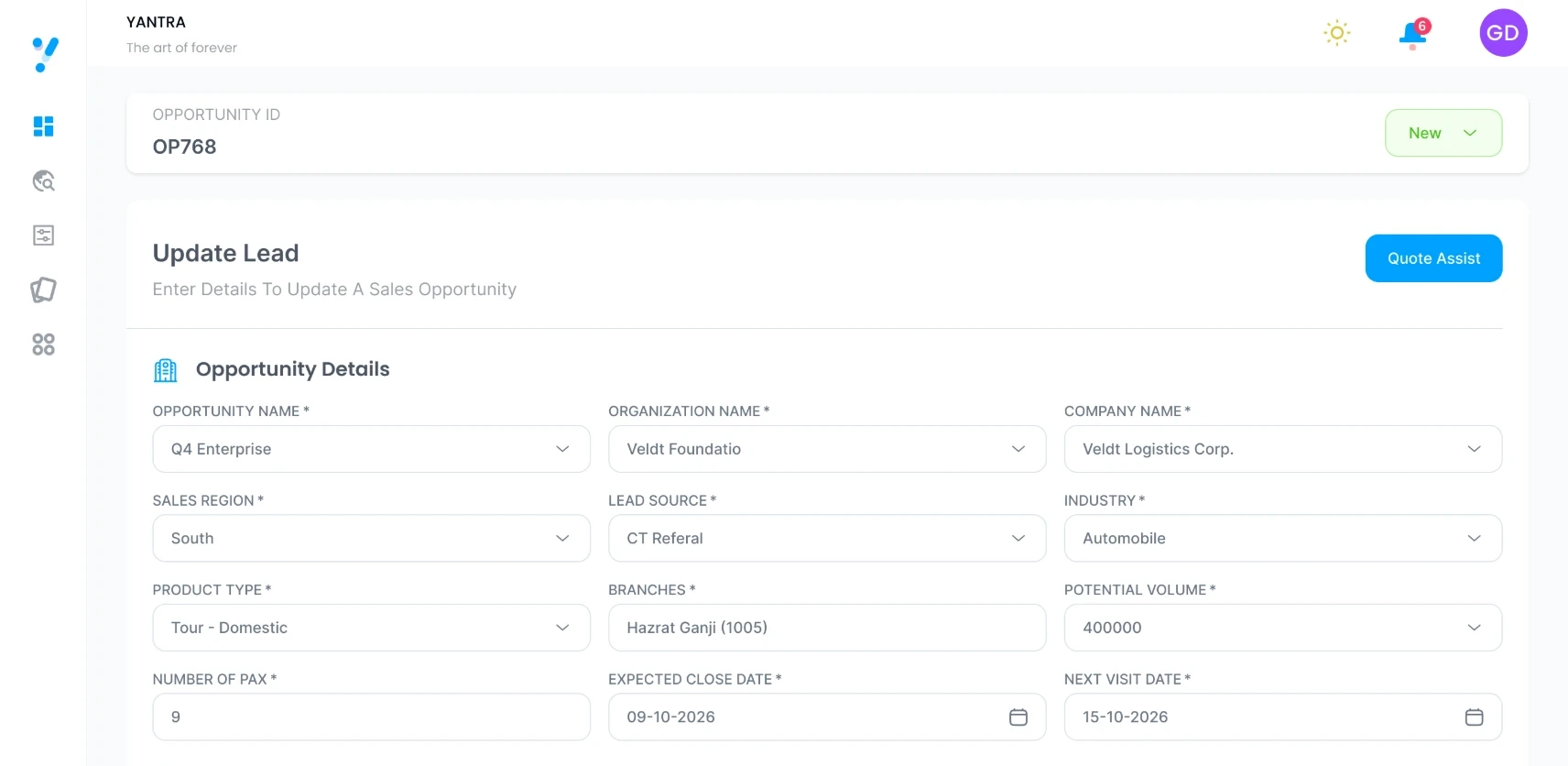
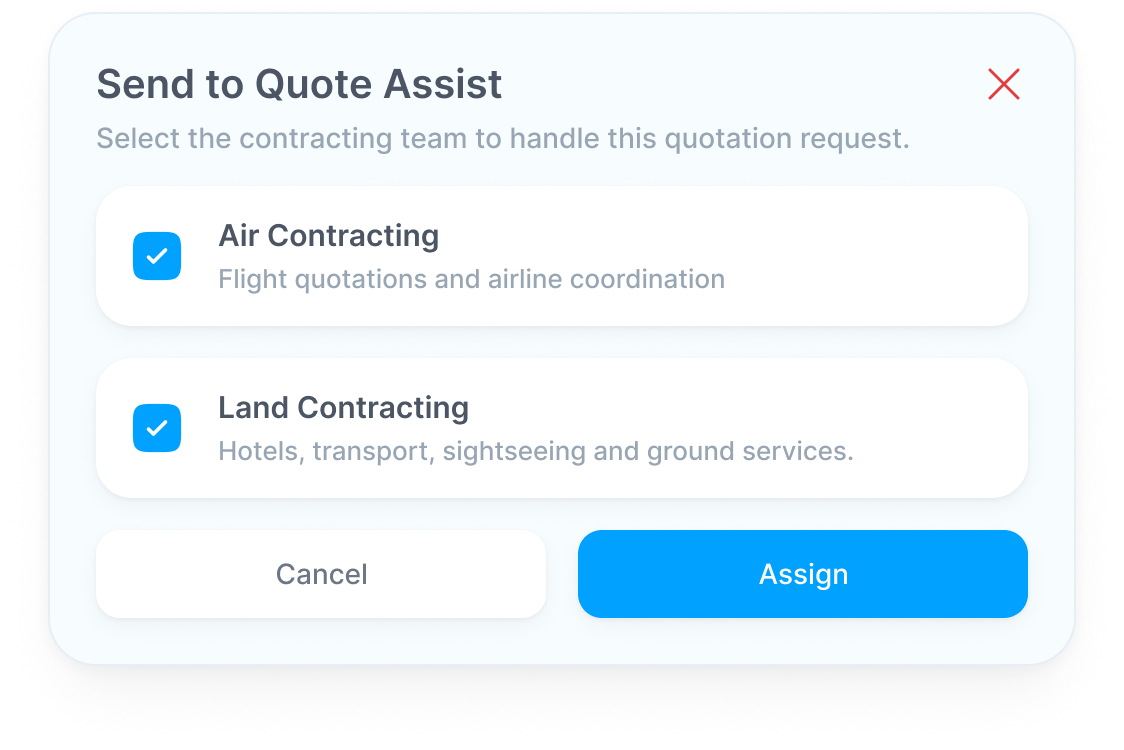
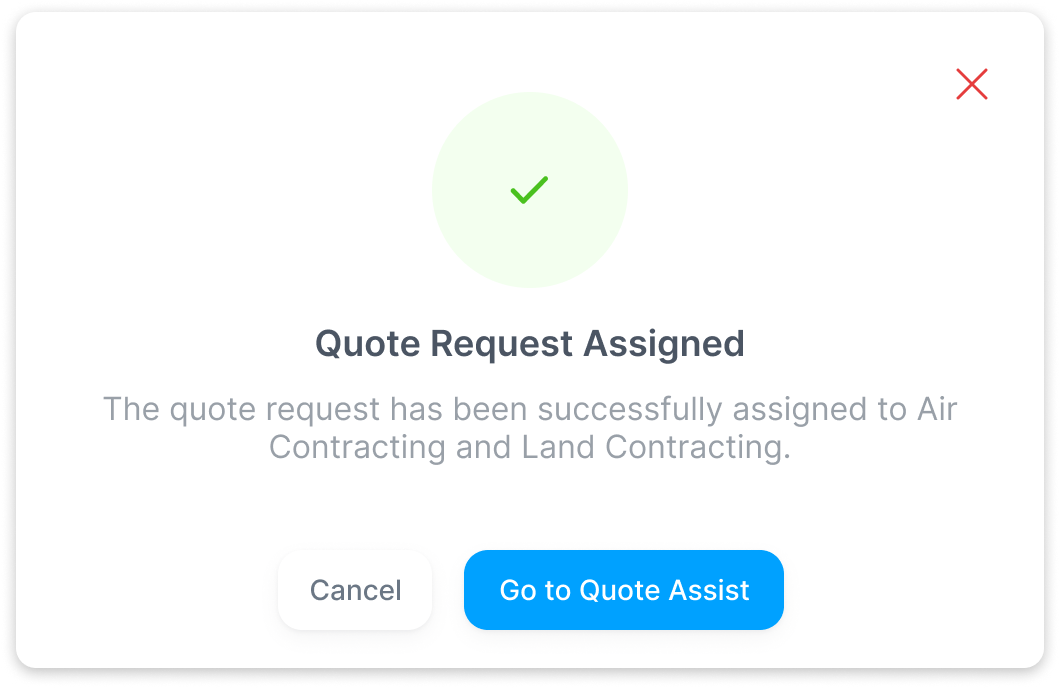
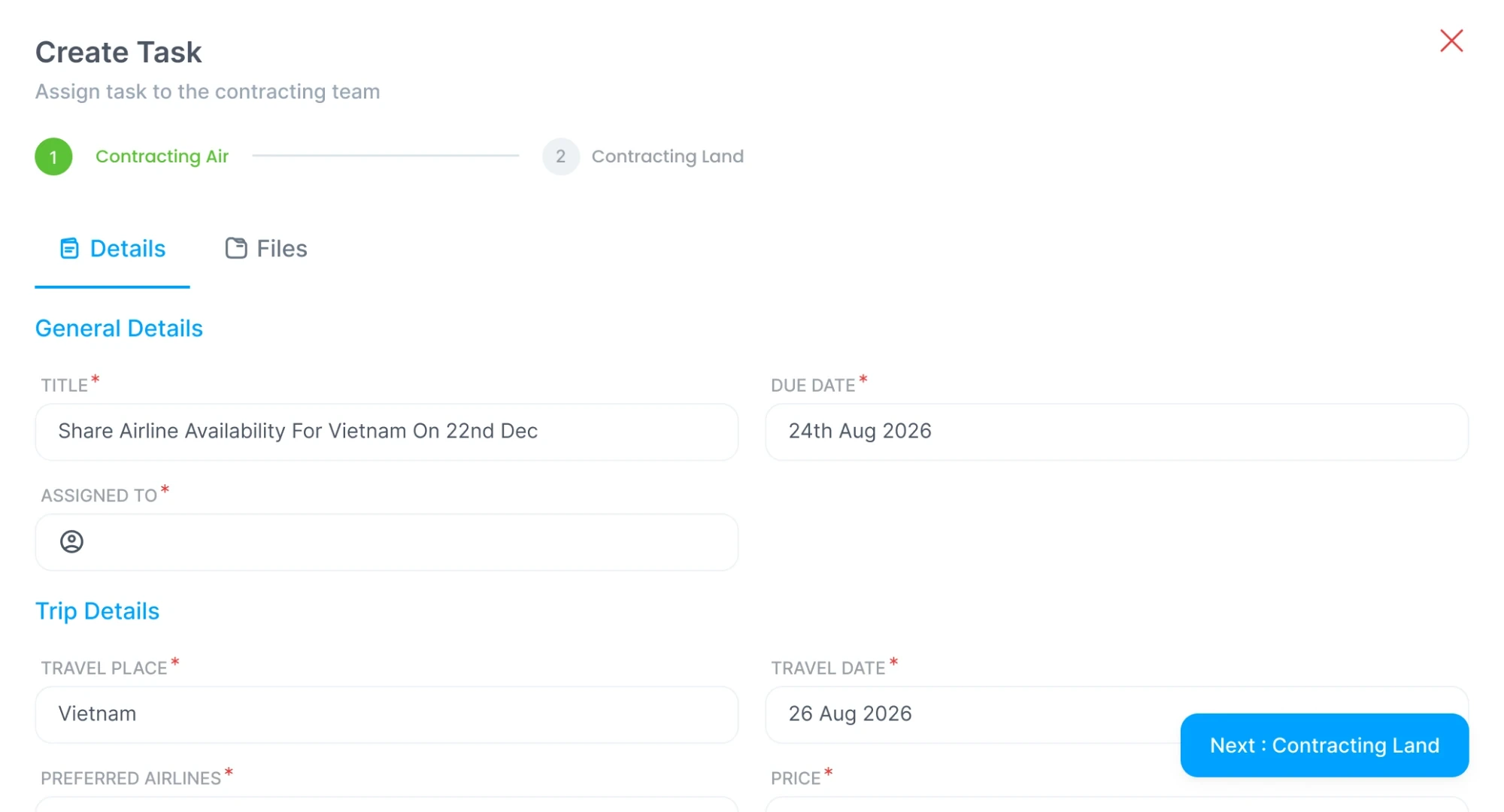
It keeps Sales on the lead they were working on, and it keeps the number of steps down. After assigning a task, Sales goes straight to the Quote Assist board, so a full page just for choosing a team would have added a step for no reason.
One board, seen from each team’s side
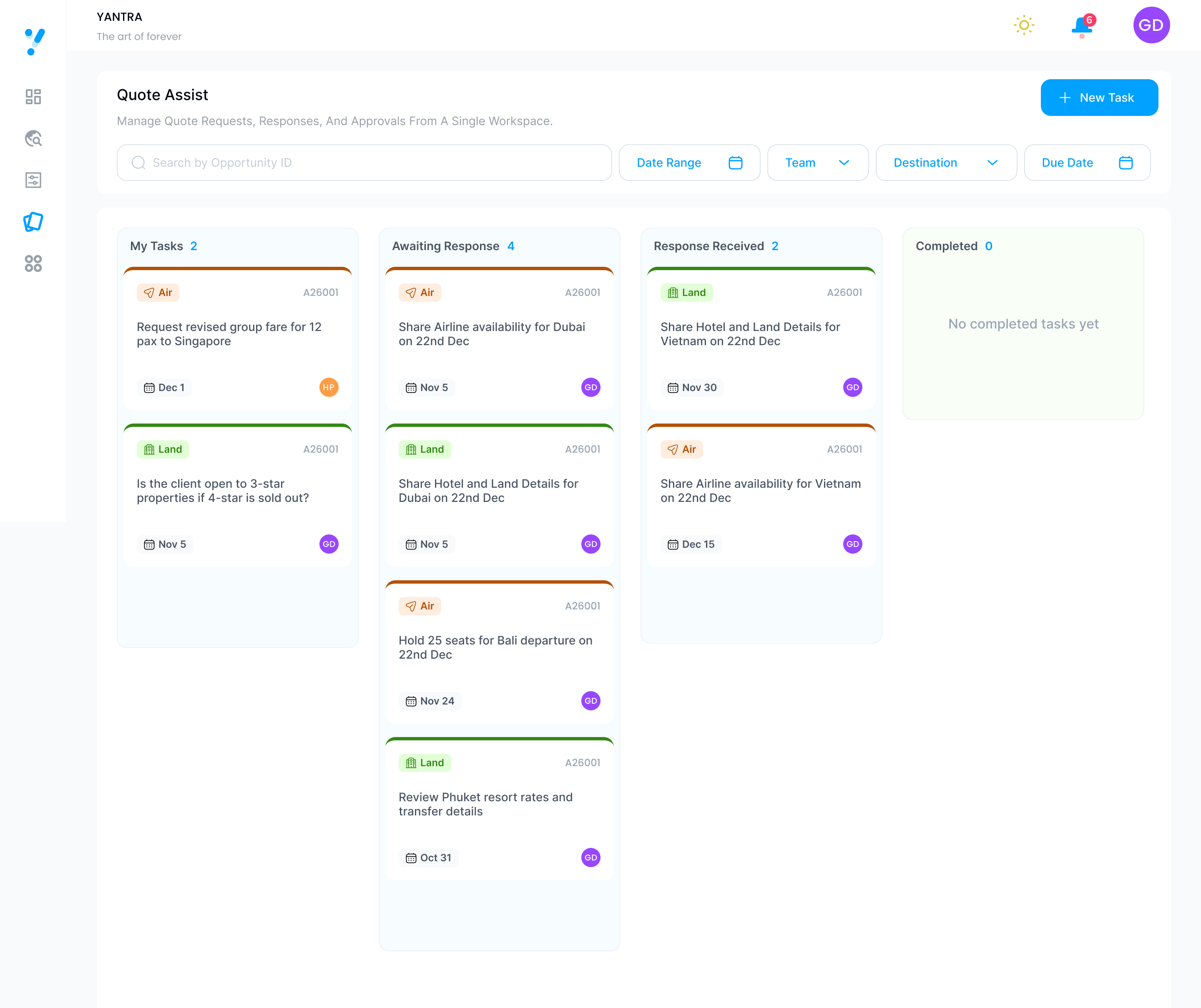
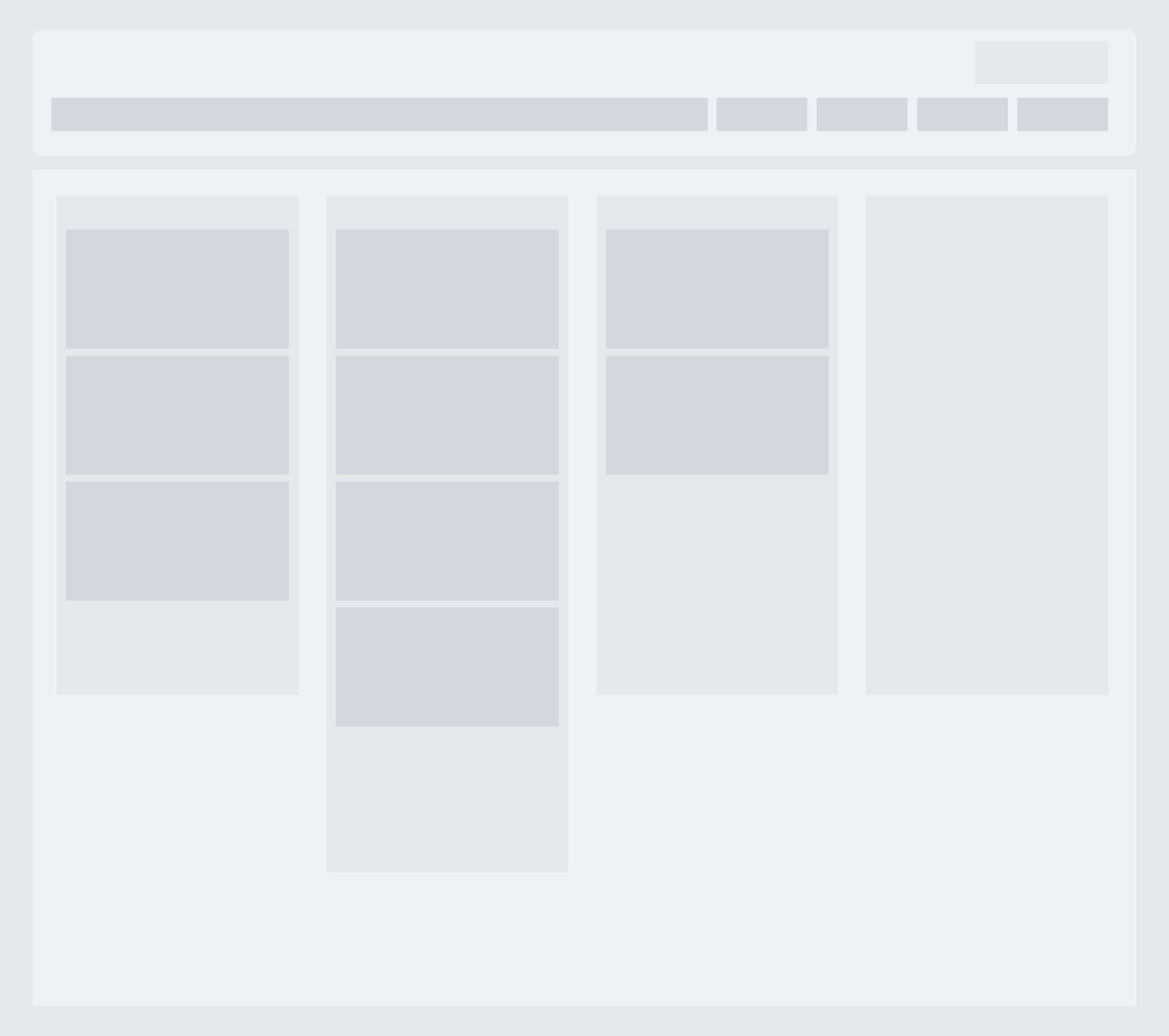
Every team gets a board with four columns, but the column names follow each team’s point of view. Sales tracks what it is waiting for. Contracting tracks what it is working on. Completed is the same for everyone.
| Sales sees | Contracting Air and Land see |
|---|---|
| My Tasks | New Requests |
| Awaiting Response | In Progress |
| Response Received | Assigned Task |
| Completed | Completed |
- Questions can go both ways. A contracting team can ask Sales something like “Is the client open to 3-star properties if 4-star is sold out?” It appears in Sales’ My Tasks and in the team’s Assigned Task column.
- On the Sales board, colour and a tag show the team. Air tasks have an orange border and an Air tag. Land tasks have a green border and a Land tag.
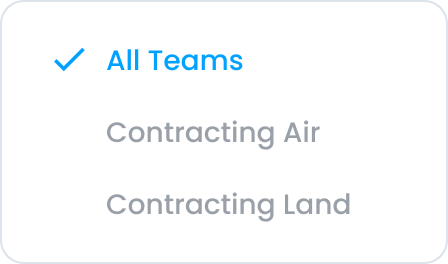
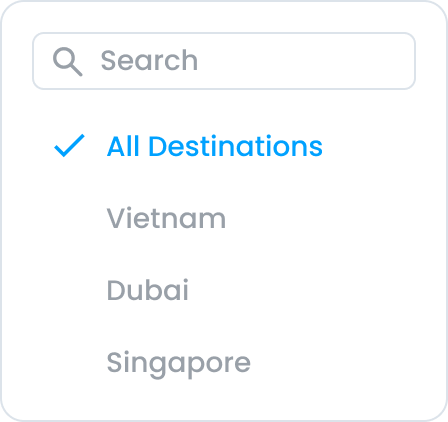
- Filters match how Sales looks for work: opportunity ID, date range, team, destination and due date.
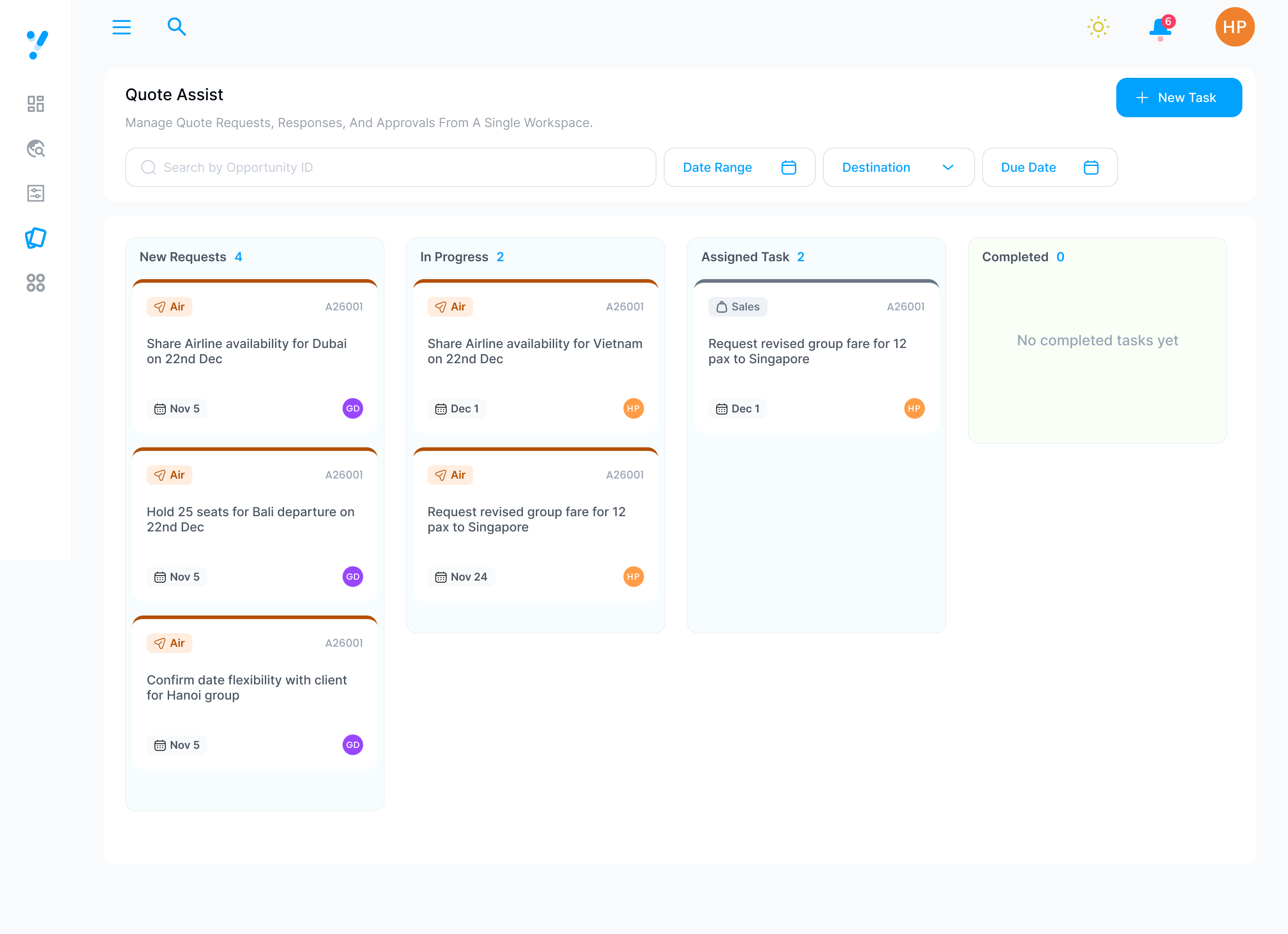
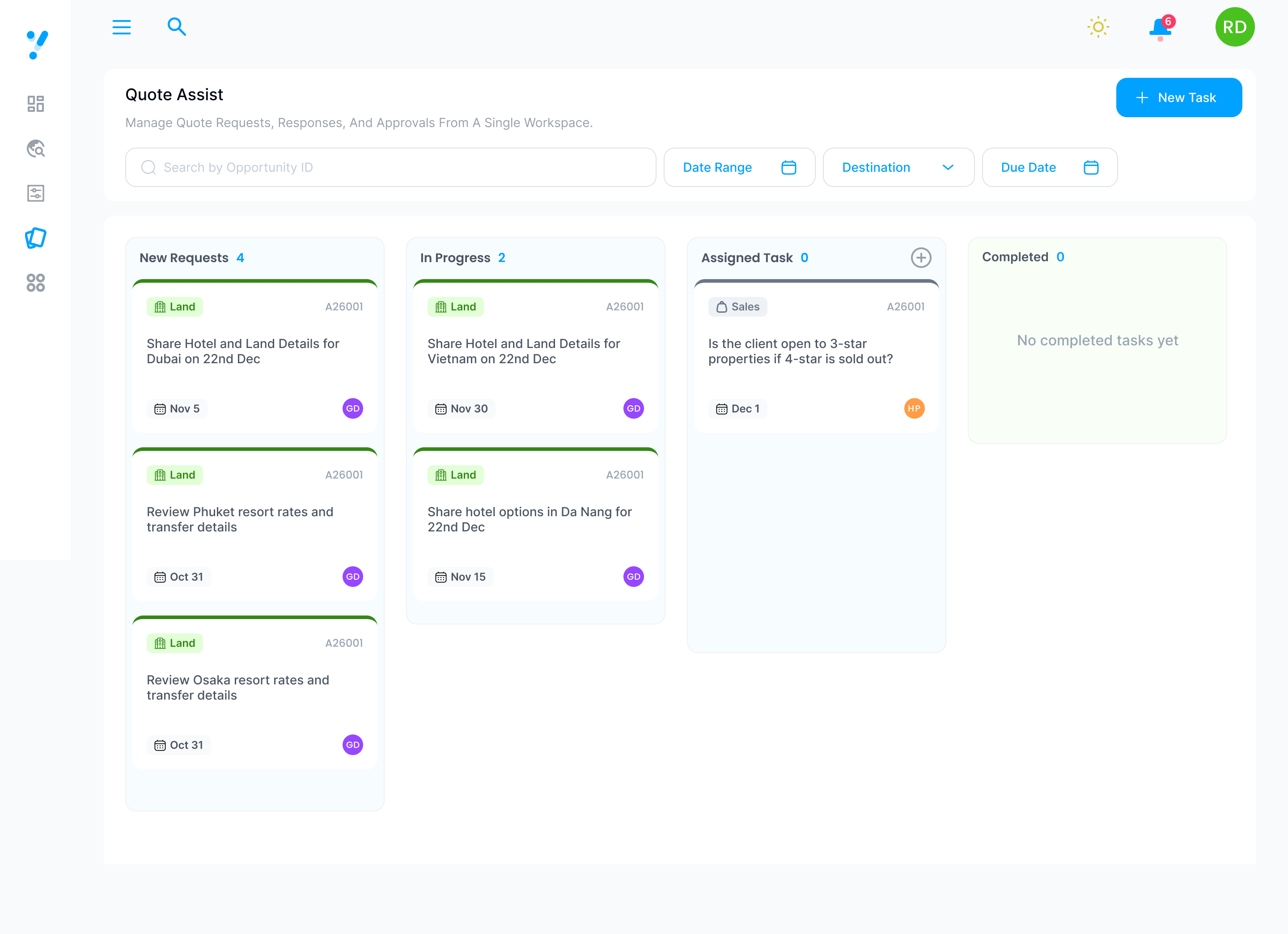
Sales and Contracting work on the same tasks, but their responsibilities and expectations differ. Sales needs to see which responses they are waiting for and which have arrived. Contracting needs to see which requests are theirs and what needs their attention. Role-specific names make each status meaningful to the person reading it, so nobody has to translate a generic label into their own situation.
Keep details, conversation and files together
Opening a task shows a summary strip that stays in place across three tabs: the task’s stage, opportunity ID, assignee, status and task ID.
- Details holds what was asked: title, due date, assignee, destination, travel date, trip length and number of guests.
- Updates is the conversation. People mention a colleague with @ and attach files, and each file appears inside the message it belongs to.
- Files collects every document in one list, split into Files Sent and Files Received, with search.
The same document can appear in Updates and in Files on purpose. Updates answers “what happened and why?” Files answers “where is the latest worksheet?”
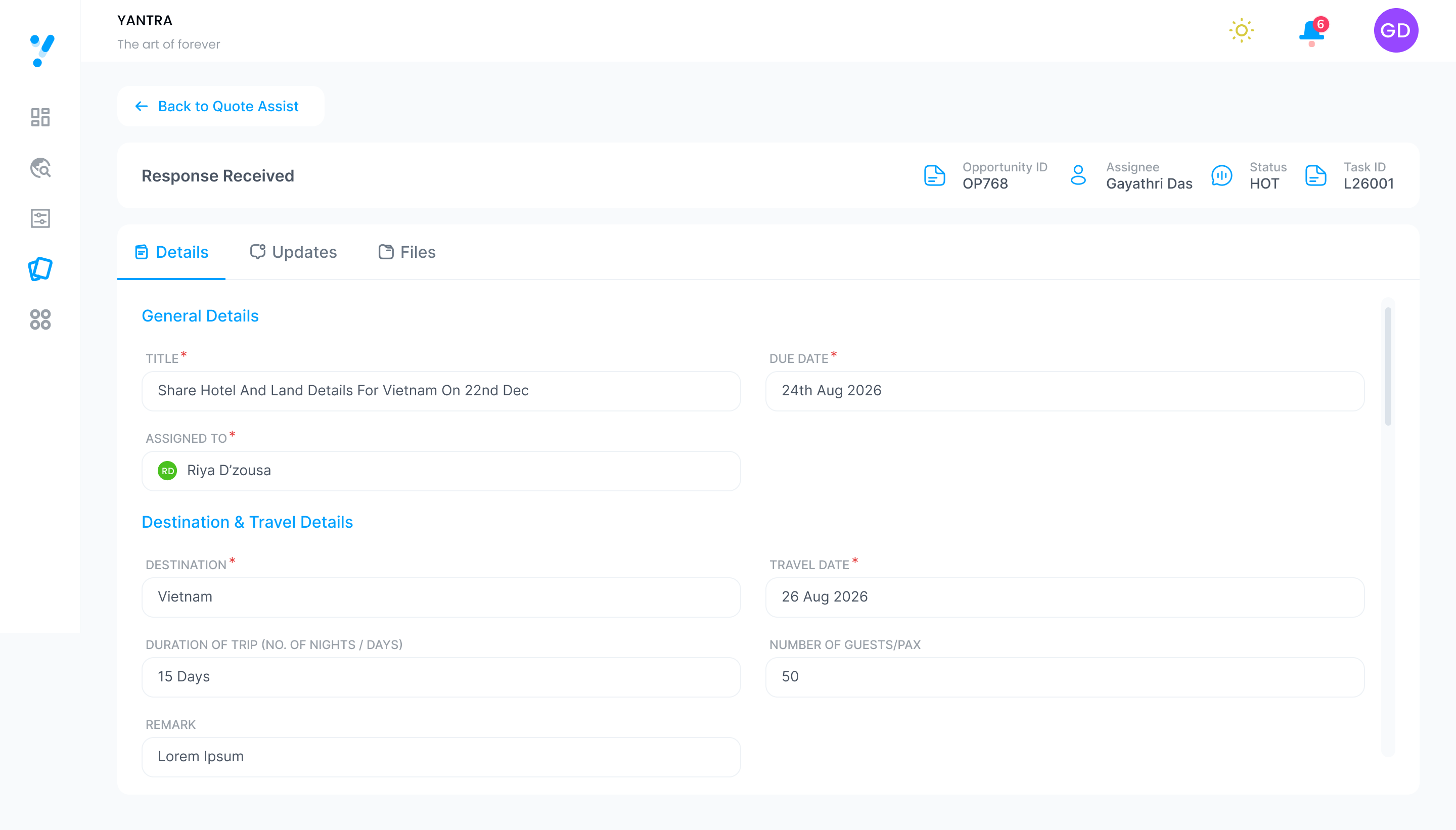
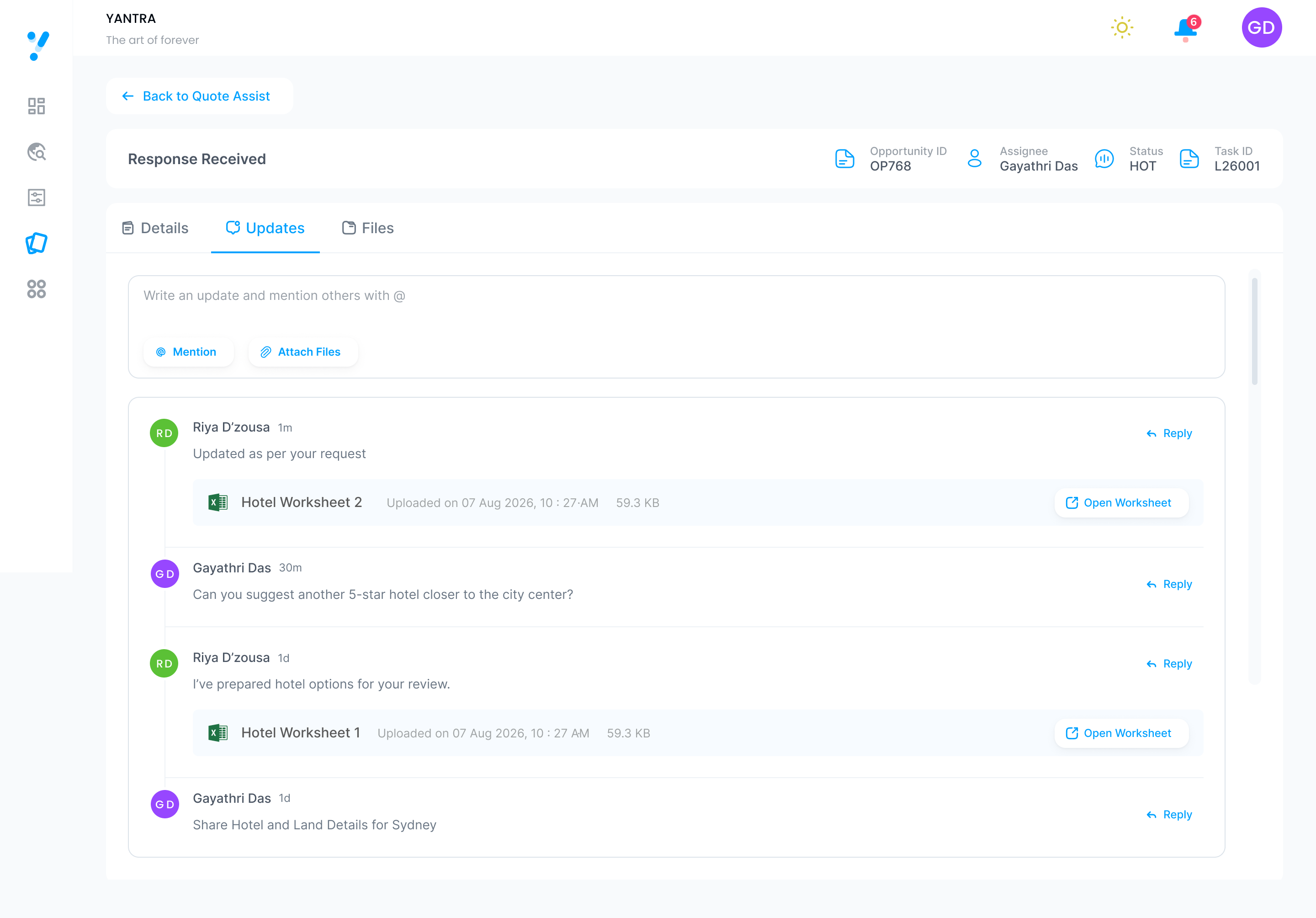
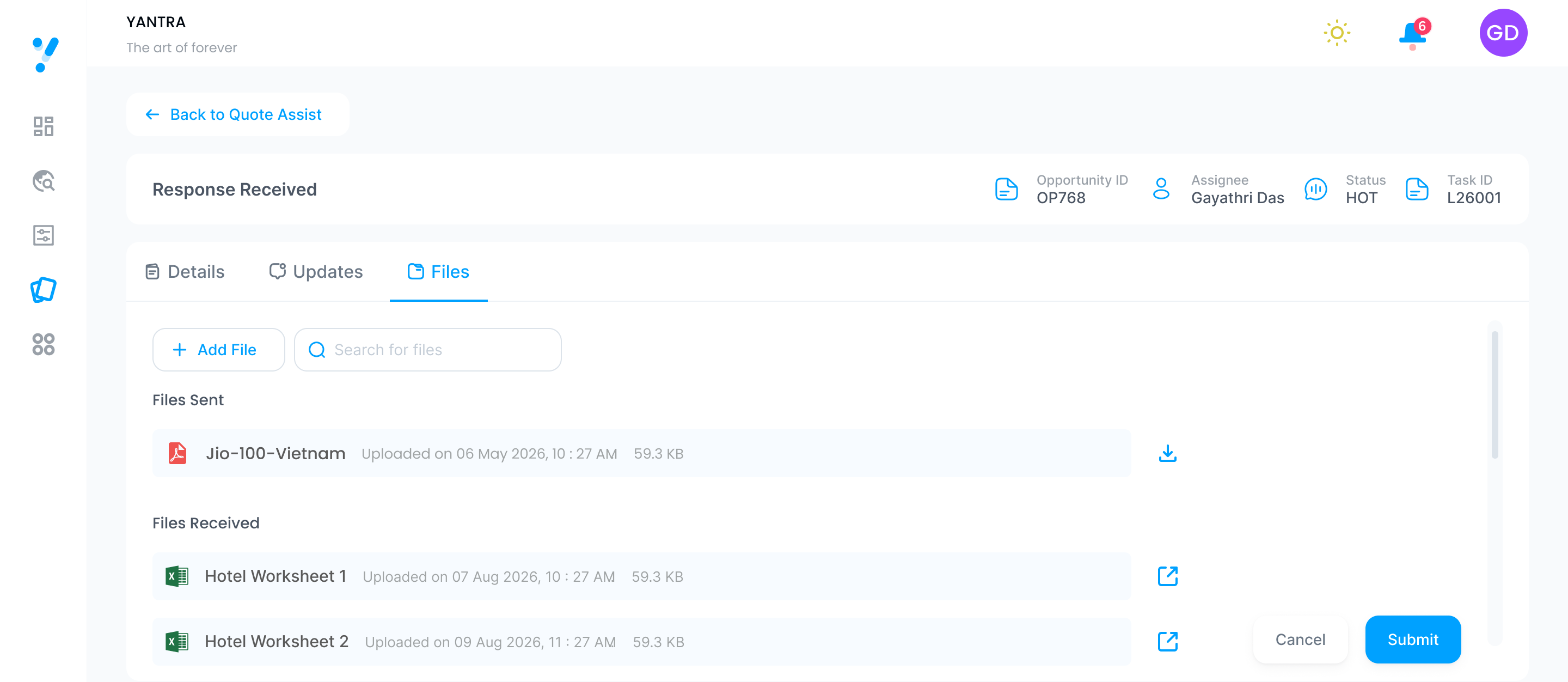
The work is a continuous back-and-forth of requests, clarifications, responses and documents, all about the same task. Keeping them inside the task keeps the information connected to its context, so nobody has to piece a task’s history together from email, chat and a shared folder. It also makes handoffs easier: when a task moves between teams, the details, the discussion and the documents move with it.
From wireframe to final design
Three screens, each as a wireframe and as the final design. The wireframe settles the structure. The final screen adds the content, colour and controls on top of it.
- Sales board: a header with one main button, a search with four filters, and four columns of cards. None of that moves between wireframe and final.
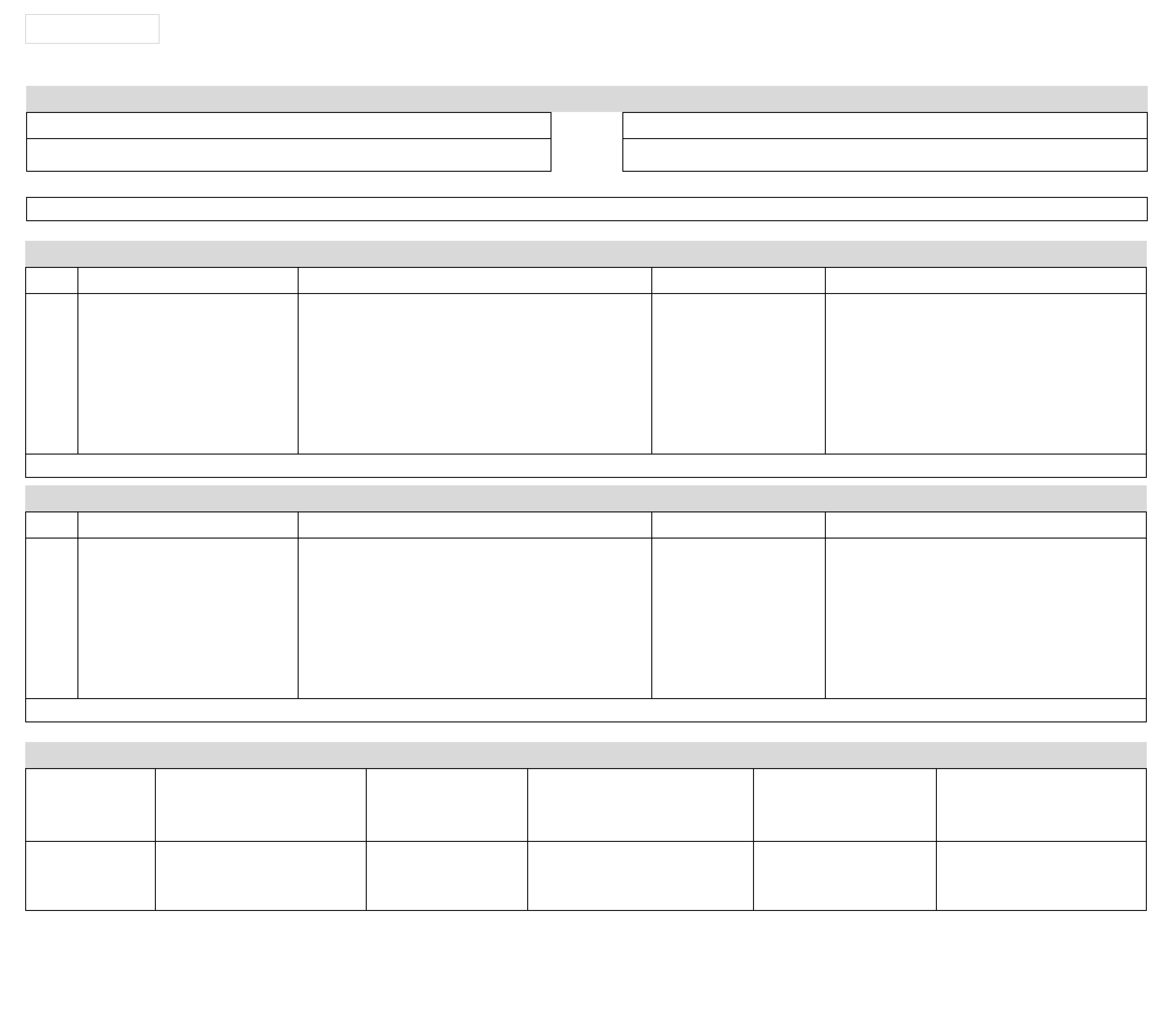
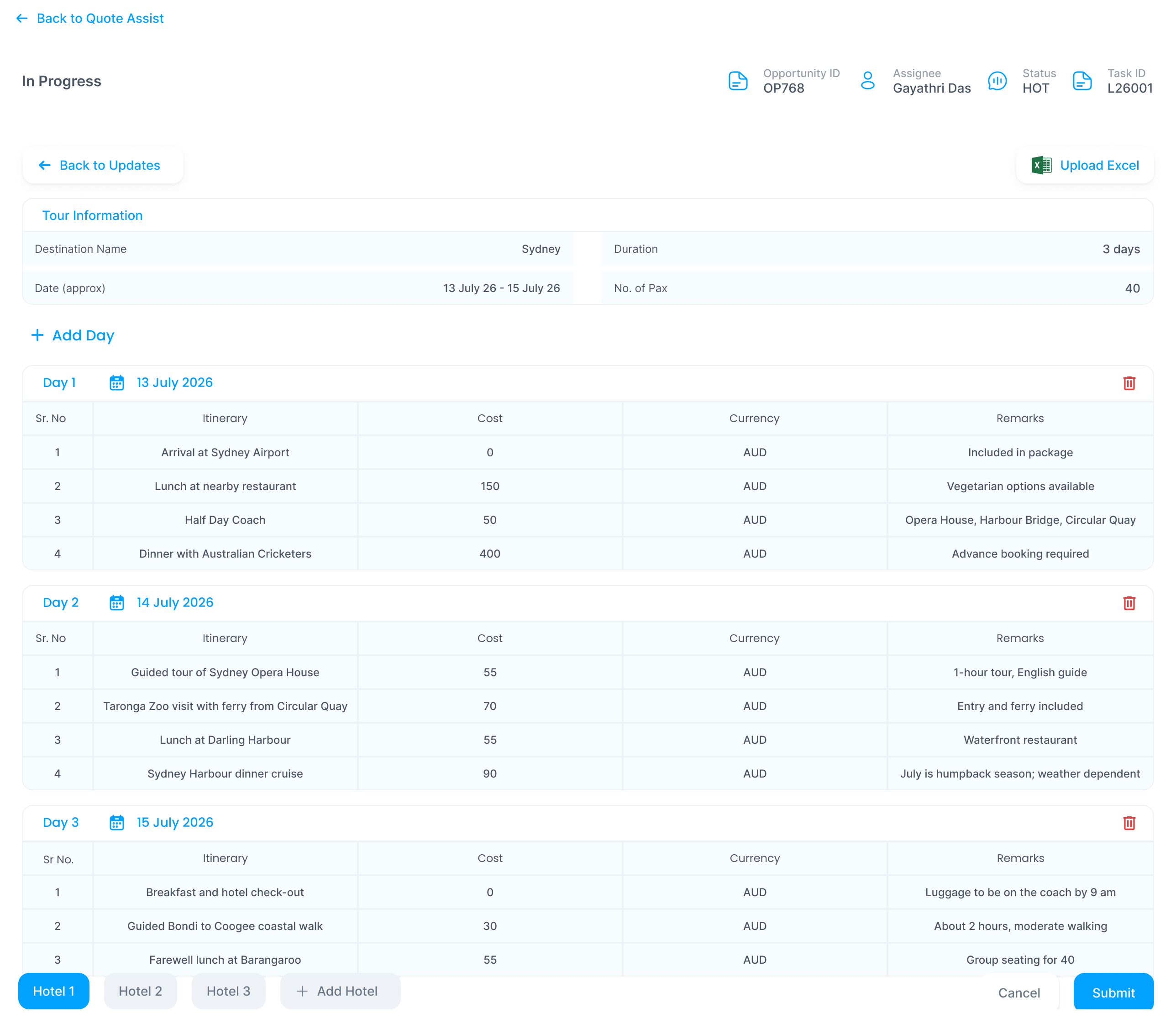
- Land response: Contracting Land answers in a workbook. Tour information sits at the top, then one table per day with itinerary, cost, currency and remarks. The team can add a day or upload an Excel file.
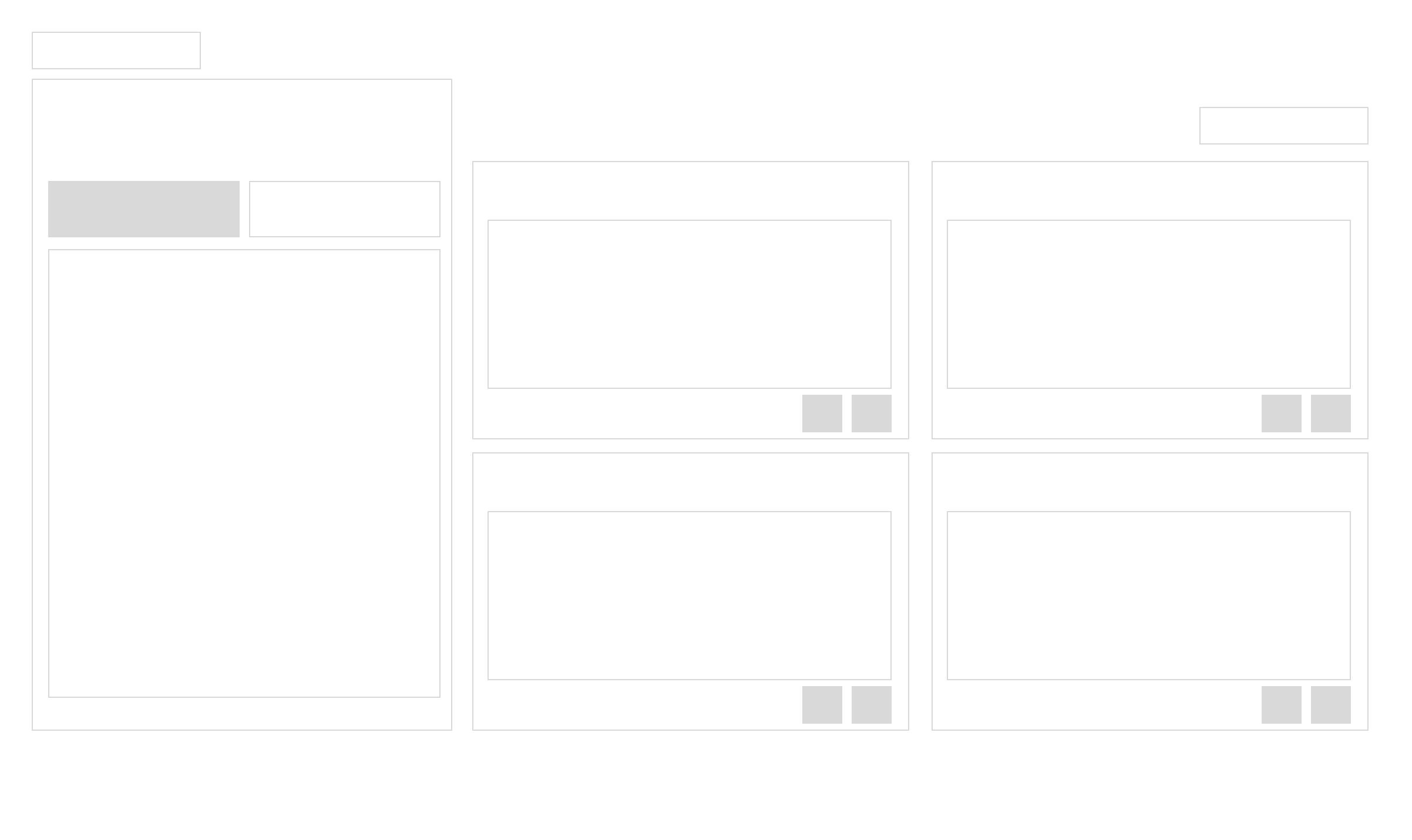
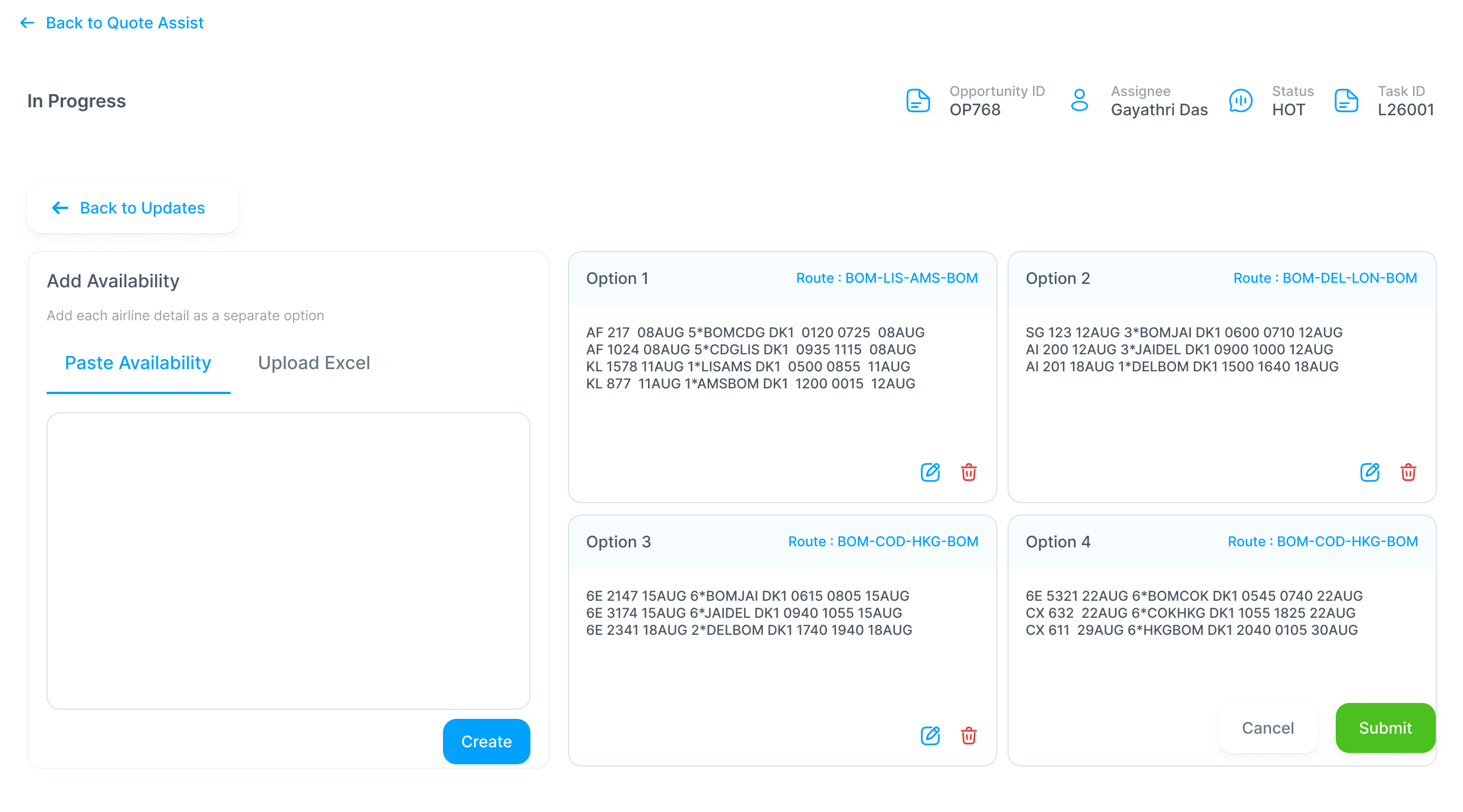
- Air availability: the team pastes availability or uploads an Excel file, then creates options to share with Sales. Each option is one complete itinerary Sales can compare.
Wireframe
Final
Wireframe
Final
Wireframe
Final
Reflection
What I learned
How important it is to understand the different perspectives of people working within the same workflow. Sales and Contracting collaborate on the same tasks, but their priorities, responsibilities and expectations are different. I also learned that designing task management isn’t just about organising tasks into columns. It means thinking through ownership, handoffs, communication, and how information stays accessible for the whole life of a task.
What I would test before it is built
- Whether Sales understands the difference between Air and Land from the window alone.
- Whether the different column names help each team, or confuse people who move between boards.
- How long it takes a contracting team to answer a request, measured before and after launch.
Task Management is planned for a later phase of YANTRA. I will update this case study if it is built.